Showing posts with label keyboard. Show all posts

Wednesday, 20 October 2021

PSA: gnome-settings-daemon's MediaKeys API is going away

 In 2007, Jan Arne Petersen added a D-Bus API to what was still pretty much an import into gnome-control-center of the "acme" utility I wrote to have all the keys on my iBook working.

It switched the code away from remapping keyboard keys to "XF86Audio*", to expecting players to contact the D-Bus daemon and ask to be forwarded key events.


Multimedia keys circa 2003

In 2013, we added support for controlling media players using MPRIS, as another interface. Fast-forward to 2021, and MPRIS support is ubiquitous, whether in free software, proprietary applications or even browsers. So we'll be parting with the "org.gnome.SettingsDaemon.MediaKeys" D-Bus API. If your application still wants to work with older versions of GNOME, it is recommended to at least quiet the MediaKeys API's unavailability.


Multimedia keys in 2021
 

TL;DR: Remove code that relies on gnome-settings-daemon's MediaKeys API, make sure to add MPRIS support to your app.

Thursday, 15 December 2016

Making your own retro keyboard

We're about a week before Christmas, and I'm going to explain how I created a retro keyboard as a gift to my father, who introduced me to computers when he brought back a Thomson TO7 home, all the way back in 1985.

The original idea was to use a Thomson computer to fit in a smaller computer, such as a CHIP or Raspberry Pi, but the software update support would have been difficult, the use limited to the builtin programs, and it would have required a separate screen. So I restricted myself to only making a keyboard. It was a big enough task, as we'll see.

How do keyboards work?

Loads of switches, that's how. I'll point you to Michał Trybus' blog post « How to make a keyboard - the matrix » for details on this works. You'll just need to remember that most of the keyboards present in those older computers have no support for xKRO, and that the micro-controller we'll be using already has the necessary pull-up resistors builtin.

The keyboard hardware

I chose the smallest Thomson computer available for my project, the MO5. I could have used a stand-alone keyboard, but would have lost all the charm of it (it just looks like a PC keyboard), some other computers have much bigger form factors, to include cartridge, cassette or floppy disk readers.

The DCMoto emulator's website includes tons of documentation, including technical documentation explaining the inner workings of each one of the chipsets on the mainboard. In one of those manuals, you'll find this page:


Whoot! The keyboard matrix in details, no need for us to discover it with a multimeter.

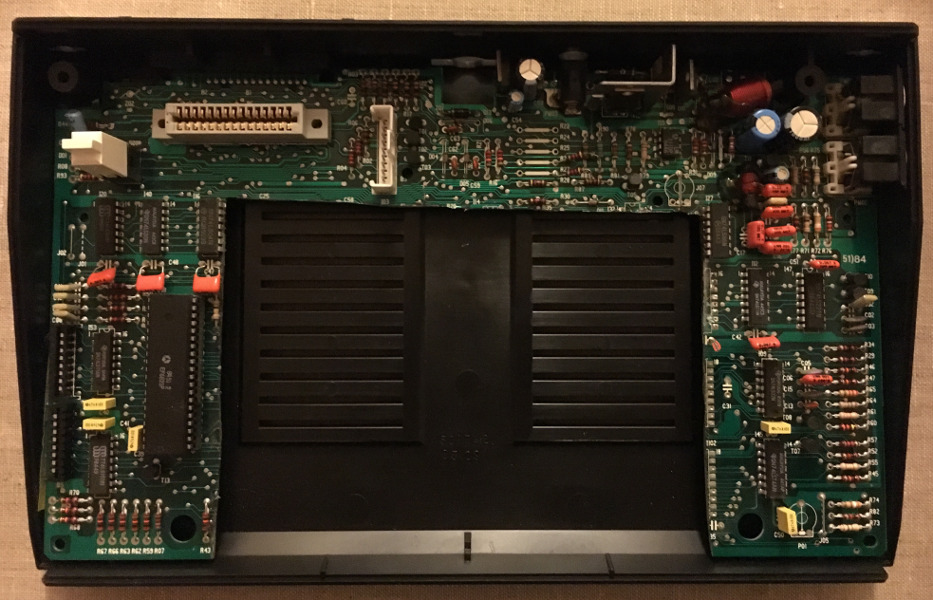
That needs a wash in soapy water

After opening up the computer, and eventually giving the internals, and the keyboard especially if it has mechanical keys, a good clean, we'll need to see how the keyboard is connected.

Finicky metal covered plastic

Those keyboards usually are membrane keyboards, with pressure pads, so we'll need to either find replacement connectors at our local electronics store, or desolder the ones on the motherboard. I chose the latter option.

Desoldered connectors

After matching the physical connectors to the rows and columns in the matrix, using a multimeter and a few key presses, we now know which connector pin corresponds to which connector on the matrix. We can start soldering.

The micro-controller

The micro-controller in my case is a Teensy 2.0, an Atmel AVR-based micro-controller with a very useful firmware that makes it very very difficult to brick. You can either press the little button on the board itself to upload new firmware, or wire it to an external momentary switch. The funny thing is that the Atmega32U4 is 16 times faster than the original CPU (yeah, we're getting old).

I chose to wire it to the "Initial. Prog" ("Reset") button on the keyboard, so as to make it easy to upload new firmware. To do this, I needed to cut a few traces coming out of the physical switch on the board, to avoid interferences from components on the board, using a tile cutter. This is completely optional, and if you're only going to use firmware that you already know at least somewhat works, you can set a key combo to go into firmware upload mode in the firmware. We'll get back to that later.

As far as connecting and soldering to the pins, we can use any I/O pins we want, except D6, which is connected to the board's LED. Note that any deviation from the pinout used in your firmware, you'd need to make changes to it. We'll come back to that again in a minute.

The soldering

Colorful tinning

I wanted to keep the external ports full, so it didn't look like there were holes in the case, but there was enough headroom inside the case to fit the original board, the teensy and pins on the board. That makes it easy to rewire in case of error. You could also dremel (yes, used as a verb) a hole in the board.

As always, make sure early that things would fit, especially the cables!

The unnecessary pollution

The firmware

Fairly early on during my research, I found the TMK keyboard firmware, as well as very well written forum post with detailed explanations on how to modify an existing firmware for your own uses.

This is what I used to modify the firmware for the gh60 keyboard for my own use. You can see here a step-by-step example, implementing the modifications in the same order as the forum post.

Once you've followed the steps, you'll need to compile the firmware. Fedora ships with the necessary packages, so it's a simple:


sudo dnf install -y avr-libc avr-binutils avr-gcc

I also compiled and installed in my $PATH the teensy_cli firmware uploader, and fixed up the udev rules. And after a "make teensy" and a button press...

It worked first time! This is a good time to verify that all the keys work, and you don't see doubled-up letters because of short circuits in your setup. I had 2 wires touching, and one column that just didn't work.

I also prepared a stand-alone repository, with a firmware that uses the tmk_core from the tmk firmware, instead of modifying an existing one.

Some advices

This isn't the first time I hacked on hardware, but I'll repeat some old adages, and advices, because I rarely heed those warnings, and I regret...
  • Don't forget the size, length and non-flexibility of cables in your design
  • Plan ahead when you're going to cut or otherwise modify hardware, because you might regret it later
  • Use breadboard cables and pins to connect things, if you have the room
  • Don't hotglue until you've tested and retested and are sure you're not going to make more modifications
That last one explains the slightly funny cabling of my keyboard.

Finishing touches

All Sugru'ed up

To finish things off nicely, I used Sugru to stick the USB cable, out of the machine, in place. And as earlier, it will avoid having an opening onto the internals.

There are a couple more things that I'll need to finish up before delivery. First, the keymap I have chosen in the firmware only works when a US keymap is selected. I'll need to make a keymap for Linux, possibly hard-coding it. I will also need to create a Windows keymap for my father to use (yep, genealogy software on Linux isn't quite up-to-par).

Prototype and final hardware

All this will happen in the aforementioned repository. And if you ever make your own keyboard, I'm happy to merge in changes to this repository with documentation for your Speccy, C64, or Amstrad CPC hacks.

(If somebody wants to buy me a Sega keyboard, I'll gladly work on a non-destructive adapter. Get in touch :)

Friday, 6 November 2015

Gadget reviews

Not that I'm really running after more gadgets, but sometimes, there is a need that could only be soothed through new hardware.

Bluetooth UE roll

Got this for my wife, to play music when staying out on the quays of the Rhône, playing music in the kitchen (from a phone or computer), or when she's at the photo lab.

It works well with iOS, MacOS X and Linux. It's very easy to use, with whether it's paired, connected completely obvious, and the charging doesn't need specific cables (USB!).

I'll need to borrow it to add battery reporting for those devices though. You can find a full review on Ars Technica.

Sugru (!)

Not a gadget per se, but I bought some, used it to fix up a bunch of cables, repair some knickknacks, and do some DIY. Highly recommended, especially given the current price of their starter packs.

15-pin to USB Joystick adapter

It's apparently from Ckeyin, but you'll find the exact same box from other vendors. Made my old Gravis joystick work, in the hope that I can make it work with DOSBox and my 20-year old copy of X-Wing vs. Tie Fighter.

Microsoft Surface ARC Mouse

That one was given to me, for testing, works well with Linux. Again, we'll need to do some work to report the battery. I only ever use it when travelling, as the batteries last for absolute ages.

Logitech K750 keyboard

Bought this nearly two years ago, and this is one of my best buys. My desk is close to a window, so it's wireless but I never need to change the batteries or think about charging it. GNOME also supports showing the battery status in the Power panel.

Logitech T650 touchpad

Got this one in sale (17€), to replace my Logitech trackball (one of its buttons broke...). It works great, and can even get you shell gestures when run in Wayland. I'm certainly happy to have one less cable running across my desk, and reuses the same dongle as the keyboard above.

If you use more than one devices, you might be interested in this bug to make it easier to support multiple Logitech "Unifying" devices.

ClicLite charger

Got this from a design shop in Berlin. It should probably have been cheaper than what I paid for it, but it's certainly pretty useful. Charges up my phone by about 20%, it's small, and charges up at the same time as my keyboard (above).

Dell S2340T

Bought about 2 years ago, to replace the monitor I had in an all-in-one (Lenovo all-in-ones, never buy that junk).

Nowadays, the resolution would probably be considered a bit on the low side, and the touchscreen mesh would show for hardcore photography work. It's good enough for videos though and the speaker reaches my sitting position.

It's only been possible to use the USB cable for graphics for a couple of months, and it's probably not what you want to lower CPU usage on your machine, but it works for Fedora with this RPM I made. Talk to me if you can help get it into RPMFusion.

Shame about the huge power brick, but a little bonus for the builtin Ethernet adapter.

Surface 3

This is probably the biggest ticket item. Again, I didn't pay full price for it, thanks to coupons, rewards, and all. The work to getting Linux and GNOME to play well with it is still ongoing, and rather slow.

I won't comment too much on Windows either, but rather as what it should be like once Linux runs on it.

I really enjoy the industrial design, maybe even the slanted edges, but one as to wonder why they made the USB power adapter not sit flush with the edge when plugged in.

I've used it a couple of times (under Windows, sigh) to read Pocket as I do on my iPad 1 (yes, the first one), or stream videos to the TV using Flash, without the tablet getting hot, or too slow either. I also like the fact that there's a real USB(-A) port that's separate from the charging port. The micro SD card port is nicely placed under the kickstand, hard enough to reach to avoid it escaping the tablet when lugged around.

The keyboard, given the thickness of it, and the constraints of using it as a cover, is good enough for light use, when travelling for example, and the layout isn't as awful as on, say, a Thinkpad Carbon X1 2nd generation. The touchpad is a bit on the small side though it would have been hard to make it any bigger given the cover's dimensions.

I would however recommend getting a Surface Pro if you want things to work right now (or at least soon). The one-before-last version, the Surface Pro 3, is probably a good target.

Friday, 28 January 2011

Region panel

Yesterday, I finished working on a UI cleanup for the “Region and Language” panel in the control-center. You can see the results below. I'm pretty happy with this, though quite a bit of work could still be done, like allowing users to install “language packs” (fonts, translations, dictionaries) from the language tab, or integrating input sources in the layouts tab.

The layout before the separator are used by other users on the system

My favourite layouts, with the new contextual items
(and sans keyboard model selection)

Thursday, 1 March 2007

Keybindings, they're back! and they're hungry for blood!

Everybody remembers (or should remember) the "Unf*ck my keyboard" session at the 2006 Boston Summit.

Thanks to Jens Granseuer, the old multimedia keys that needed keybindings assigned to them now work just as they should with players such as Totem, and Rhythmbox, using D-Bus to pass along the keypresses. A 3-year old bug goes dead.

Today, I just finished another part of the fun, which was making it possible for 3rd-party applications to add shortcuts to the Keybindings c(r)applet. I hope the patch will make it early in 2.19.x so that applications like Beagle and Tomboy can use it, instead of adding this sort of thing in their own preferences dialogue.

Last part of the problem is being able to update keymaps in a reasonably user-friendly way. Metacity, and all the other apps using GTK+ to translate the "keybinding" string to something Gdk understands, don't know how to handle keys without keysyms. When such a key is pressed in the keybindings applet, we should allow the user to map the key to a keysym, name their keyboard map, and send it off to us (or keep it for themselves, it's supposed to be dead-easy anyway).

That's a much harder problem though. For later, yes, later.